Showing posts with label ubuntu. Show all posts

Friday, 24 November 2017

Linux Distributions

My personal opinions on some of the most popular Linux Distributions.
Keep in mind that any of the below Linux distributions can be a stable server and a nice
graphical desktop client.

CHOOSING A LINUX DISTRIBUTIONS

Distribution Name                          Reason(s) For Using

Red Hat Enterprise (RHEL)          You are a manager and you want a good support contract.
CentOS                                         You want Red Hat without the support contract from Red Hat.
Fedora                                           You want Red Hat on your laptop/desktop.
Linux Mint                                      You want a personal graphical desktop to play movies, music and games.
Debian                                           My personal favorite for servers, laptops, and any other device.
Ubuntu                                           Very popular, based on Debian, not my favorite.
Kali                                                 You want a pointy-clicky hacking interface.
others                                             Advanced users may prefer Arch, Gentoo, OpenSUSE,   Scientific, etc.
                                                           
Below are some links to help you choose:

www.distrowatch.com

www.redhat.com

www.centos.org

www.debian.org


www.ubuntu.com

Thursday, 17 January 2013

Ubuntu for Android Devices


Ubuntu desktop for docked Android phones
Ubuntu for Android provides a full desktop experience, including office software, web browsing, email and media applications, on Android phones docked to a screen and keyboard. Thanks to tight integration with the Android service layer, the transition between the two environments is seamless, making it easy to access the phone's services from the desktop when docked.

Secure access full-featured web

Sit back and enjoy a full desktop browser for multi-tab, multi-window web productivity. Ubuntu supports both Chromium and Firefox, the world's fastest browsers, and is naturally resistant to web malware, which is why enterprises and governments are adopting Ubuntu on desktops.
Surf on the move with the Android browser, then dock to continue your session on the desktop. You get the same web pages, the same bookmarks and the same browsing history, with all the real-estate of a desktop. Using web applications with a full keyboard and mouse is so much better than a tablet when you're at a desk, even in a hotel. 

Unified contacts

Both Ubuntu and Android access the same mobile address book. So even when the phone is docked, you can view, edit, call, text or email a contact. You can even check their profiles on Facebook or Twitter. 

Messaging and calls

Read and reply to incoming SMS messages from the desktop, using Ubuntu's message indicator. You can also make and receive calls via the desktop - and you'll be alerted to voicemails so you can manage them while you work.

 integrated settings

Alarm clock settings on the phone can be synchronised to alert you when working in the Ubuntu environment. You'll have one place to enter wifi passwords and one place to pair your bluetooth headset, then everything just works.

Social networking 

All your Android social network account credentials are synchronised seamlessly, using the Ubuntu social networking client to provide easy access to your online communities.

Hardware specifications

Ubuntu for Android requires minimal custom hardware enablement, allowing fast and cost-efficient core integration. It requires a core based on Android 2.3 (Gingerbread) or any subsequent version.
Ubuntu and Android share the same kernel. When docked, the Ubuntu OS boots and runs concurrently with Android. This allows both mobile and desktop functionality to co-exist in different runtimes.
Shared services and applications are delivered using a Convergence API module which ensures the tight integration between desktop and mobile environments. Work is balanced across the cores of the phone. When the handset is not docked, both CPU cores transfer their full power to Android.
For more information please visit


Thursday, 10 January 2013

Network File System (NFS) Configuration in Ubuntu 12.04


NFS allows a system to share directories and files with others over a network. By using NFS, users and programs can access files on remote systems almost as if they were local files.
Some of the most notable benefits that NFS can provide are:
1.        Local workstations use less disk space because commonly used data can be stored on a single machine and still remain accessible to others over the network.
2.        There is no need for users to have separate home directories on every network machine. Home directories could be set up on the NFS server and made available throughout the network.
3.        Storage devices such as floppy disks, CDROM drives, and USB Thumb drives can be used by other machines on the network. This may reduce the number of removable media drives throughout the network.
Installation
At a terminal prompt enter the following command to install the NFS Server
:sudo apt-get install nfs-kernel-server
Configuration
You can configure the directories to be exported by adding them to the /etc/exports file. For example:
/ubuntu  *(ro,sync,no_root_squash)
/home    *(rw,sync,no_root_squash)


You can replace * with one of the hostname formats. Make the hostname declaration as specific as possible so unwanted systems cannot access the NFS mount.
To start the NFS server, you can run the following command at a terminal prompt:
sudo /etc/init.d/nfs-kernel-server start
NFS Client Configuration
Use the mount command to mount a shared NFS directory from another machine, by typing a command line similar to the following at a terminal prompt:
sudo mount example.hostname.com:/ubuntu /local/ubuntu
The mount point directory /local/ubuntu must exist. There should be no files or subdirectories in the /local/ubuntu directory.
An alternate way to mount an NFS share from another machine is to add a line to the /etc/fstab file. The line must state the hostname of the NFS server, the directory on the server being exported, and the directory on the local machine where the NFS share is to be mounted.
The general syntax for the line in /etc/fstab file is as follows:
example.hostname.com:/ubuntu /local/ubuntu nfs rsize=8192,wsize=8192,timeo=14,intr
If you have trouble mounting an NFS share, make sure the nfs-common package is installed on your client. To install nfs-common enter the following command at the terminal prompt:
sudo apt-get install nfs-common

Thursday, 27 December 2012

File compression in Linux & ubuntu


File compression in ubuntu

For most everyday users, file compression is the process of taking many files and combining them into a single archive file that’s shrunk so it takes up less disk space. This makes the files easier to transfer from
computer to computer. Most Windows users make heavy use the Zip file format, and this is
fully supported in Ubuntu.Double-clicking a compressed file of virtually any format will open it in
the File Roller program, which is a little like WinZip under Windows. To extract any file or folder within the archive, simply click and drag it to a new location.
To create a compressed file from a file or folder, just right-click it and select the Create Archive option. Select the compression type you’d like to use from the dropdown list alongside the filename. Although Zip is popular on Windows, and there is no reason why it can’t be used under Ubuntu, most Ubuntu and Linux users prefer a different type of compression: compressed tar files. Tar has its roots in magnetic tape backup, hence the name: Tape ARchive. A tar file is simply lots of files combined into a single large file. Tar files
aren’t compressed by default, which is to say, tar is not a compression


Archive file extension                         Details
.tar                                                    Tape ARchive; simple format in which files are combined into a larger
                                                         file. Handled by the tar command at the command-line. Tar files aren’t
                                                         automatically compressed. The chief benefit of tar files is that they
                                                         record permission and ownership details, making them ideal for
                                                         backup.
.tar.gz                                               Tar archives that have been additionally compressed using the gzip
                                                        software, usually at the point of creation. Sometimes the .tgz file
                                                        extension is used instead of .tar.gz.
.tar.bz2                                            Tar archives that have been additionally compressed using the bzip2
                                                        software, usually at the point of creation. Bzip2 compression leads to
                                                        the smallest files of all, so is preferable. Sometimes the .tbz file
                                                        extension is used instead of .tar.bz2.
.zip                                                  As with Windows, zip files are compressed archives. Zip files haven’t
                                                       gained much traction in the Linux/Unix world because of legal concerns
                                                       some years ago. This is no longer an issue, but other archive formats
                                                       such as gzip and bzip2 are simply more established.


technology. However, tar files are nearly always compressed using add-in programs, the most popular of which are bzip2 and gzip. Tar files that are compressed usually have double file extensions showing
the type of compression used: .tar.bz2 or .tar.gz.


Installation of network printer in ubuntu


Installing a network printer

To install a shared network printer in Ubuntu 8.10, such as one connected to another computer in your home or office, click System- Administration-  Printing and click the NEW button in the toolbar (click NEW PRINTER if using Ubuntu 8.04). Then select the type of network printer you’d like to connect to across the network.
For printers utilizing a network server device—normally found only in corporate environments—select AppSocket/HP JetDirect. Enter the address details on the right of the program window. This will probably
take the form of an IP address and a queue name—see your administrator for these, or the print server’s documentation. If connecting to a shared printer on a Windows PC, select Windows Printer via SAMBA, and click the BROWSE button to have Ubuntu automatically detect shared printers on the local network,  Click the chevrons alongside each heading to “unfold” them and, when you find the printer you’re looking for, select it and click the OK button.
Back in the parent window, click the radio button alongside Set Authentication Details Now (under Ubuntu 8.04 click the Authentication Required checkbox) and enter the Windows (not Ubuntu!) login
username/password required to access the Windows account that’s sharing the printer. Click VERIFY to check that the details work.
Click Forward when done to install the printer driver. It is unlikely it will be detected, and you will have to select it manually by working through the list of printer manufacturers and models.

Tuesday, 25 December 2012

Installation of Ubuntu Linux 11.10 step by step


Installation of Ubuntu Linux 11.10

The installation of Ubuntu Linux 11.10, 32-bit version from a LiveCD. The installation of other 'ubuntu versions including 64-bit will be very similar.

Step 1:
The first thing you should do is head to 
http://www.ubuntu.com/download/ubuntu/download and download Ubuntu 11.10 LiveCD. click the big orange Start download box.

Step 2:
Using your disc burning software, burn the .iso you downloaded to a CD.

Step 3:
Before you go any further, ensure all important data is backed up in case of data loss on your drives.
Step 4:
Ensure you have a network cable connected, restart your computer, and boot from the CD drive.

Step 5:
The LiveCD will load up, and you'll be presented by the following box:


proceed with an installation, so click "Install Ubuntu."

Step 6:
You'll be greeted by the "Preparing to install Ubuntu" screen, exactly as below:


select "Install third-party software" as I have done in the screenshot above. I prefer to do system updates once up and running, but if you have the extra time you can also select "download updates while installing" as well. Then click continue.

Step 7:
The next screen you will see is "installation type," what you see will be dependent on whether you have an existing Windows installation or not.


Step 7-a:
For those installing in a virtual machine or to hard disks without an OS you will see the following screen:


You have two choices:

1. Erase the entire disk and use all of it for installation -- Ubuntu will automatically partition your disk and proceed with installation.
2. Select "something else" and manually create your partitions (which is covered in detail in step 7-C).

If you are choosing the first option, select the radio button and then click continue, proceeding to step 8.

Step 7-b:
Those of you that have current Windows installations or are going to dual-boot with another existing OS will be presented with a screen similar to below:


You have three options available:

1. You can choose the first option and install Ubuntu alongside your existing OS.
2. You can opt to replace your Windows installation with Ubuntu, allowing the installer to format your current partitions and automatically create new ones for Linux.
3. You can choose "something else" and create your own partition scheme and sizing (covered in detail in step 7-C).

Once you have selected which route you wish to proceed with click continue and proceed to step 8.

Step 7-c:
Having selected the "something else" option you will be presented with the following window:


Linux recognizes and assigns IDs to drive in a different manner to Windows. In the above image, you can clearly see my hard disk in the list. It is identified by "/dev/sda." Linux recognizes drives in the following way:
• Sda = 1st drive
• Sdb = 2nd drive
• Sdc = 3rd drive and so on

Partitions are also shown after the drive letters. So if I had 2 partitions on my first disk, they would be identified as:
• Sda1 – 1st drive, 1st partition
• Sda2 – 1st drive, 2nd partition

You will not see the common Windows C: label in the disk menu in the above list. You do, however, have key things to help you recognize your Windows C: drive. Both of these can be used to identify which is your Windows disk.
• The size of the disk is shown
• The name of the drive is shown
This is your current partition layout for your hard disks. If you have more than one disk, they will show up as /dev/sda, /dev/sdb etc.

Firstly, identify your Windows installation. In my case, it's sda1 (which is my first hard disk, first partition). What you see depends on how you created the extra space. I just resized the Windows partition from within Windows, and left the free space ready to install Linux. I recommend using Windows or a free utility from within Windows to resize your partition as most beginners will understand it more.

Therefore, we now need create a minimum of two partitions:

Click "Add" and the following box will appear:


You will notice I have already filled out the example above to create a 10GB root partition.

You can have a maximum of 4 primary partitions, or 3 primary partitions and 1 logical (which allows for another 64 partitions)
The size above is 10.00GB. e.g 1,000 = 1GB 10,000 = 10GB (Remember to leave enough free remaining space to create your SWAP partition!)
Location for new partition: e.g. do you want it at the start or end of the free space. Select beginning.
Use as: Ext4 is the recommended file system for Ubuntu, much the same as NTFS is Windows. SWAP is for SWAP space.
Mount point: This is where you want the partition to mount. E.g. we need a root partition, which in Linux is denoted by a "/".

Click OK once you have finished setting the partition information and you will return to your partition screen, now showing the root partition you just created. Using the same methods as before, create a SWAP partition
Once you have done that, you should be looking at something like below


So to re-cap the above, (in my example) we have the following:

• /dev/sda1 is your Windows partition.
• /dev/sda2 is your new root partition (Windows equiv. of C .
• /dev/sda3 is your SWAP space.

Once you are happy with the changes you have made, click install now and proceed to the next step.

Step 8:
As the installation starts to copy the required files to the hard disk, you will be presented with a screen to select your locale. It should automatically find where you are, as it has for me already:


Just double check it is correct, and then select continue.

Step 9:
The next screen to appear will be keyboard layout


Ensure the correct option is selected, above you will see the correct (and default UK) selection has been automatically made for me.

Step 10:
You will now be greeted by the "who are you" screen, ready for you to fill out with your user details:


The computers name and username will automatically populate when you type your full name. You can however edit them as you please. Fill in the details and then click continue.

You can opt to have Ubuntu automatically log in for you -- even with a password set -- or you can choose the traditional option requiring a password to log in. You really don't need to choose the encrypt option unless you're installing on a laptop and are dealing with highly secure information.
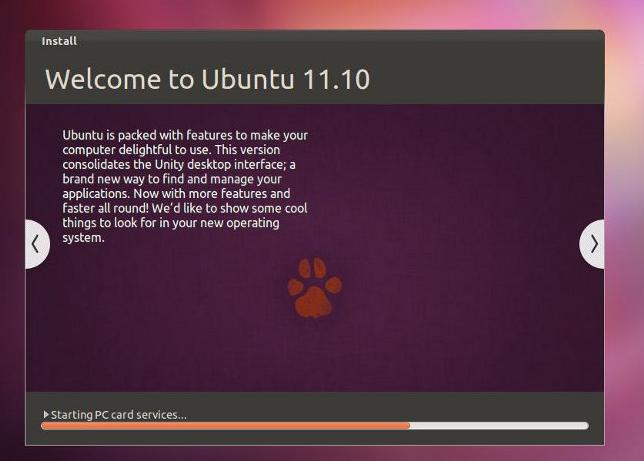
Step 11:The installation information screens will now appear as Ubuntu continues the installation


Step 12:Once installation has finished, you will be presented with the following box:


Select "restart now" and when requested, remove your installation CD, then press enter to reboot.

Step 13:
For those of you that have Ubuntu as the only OS the computer will boot directly into Linux. If you're dual-booting, you will see the GRUB menu appear similar to below:


Press enter, to select the first option and load your newly installed Ubuntu OS.

Step 14:
For those that elected to automatically log into Ubuntu, you will go straight to the desktop in Step 15. For everyone else, you will be greeted with the new login manager for Ubuntu


Enter your password, and hit enter to login to your desktop.

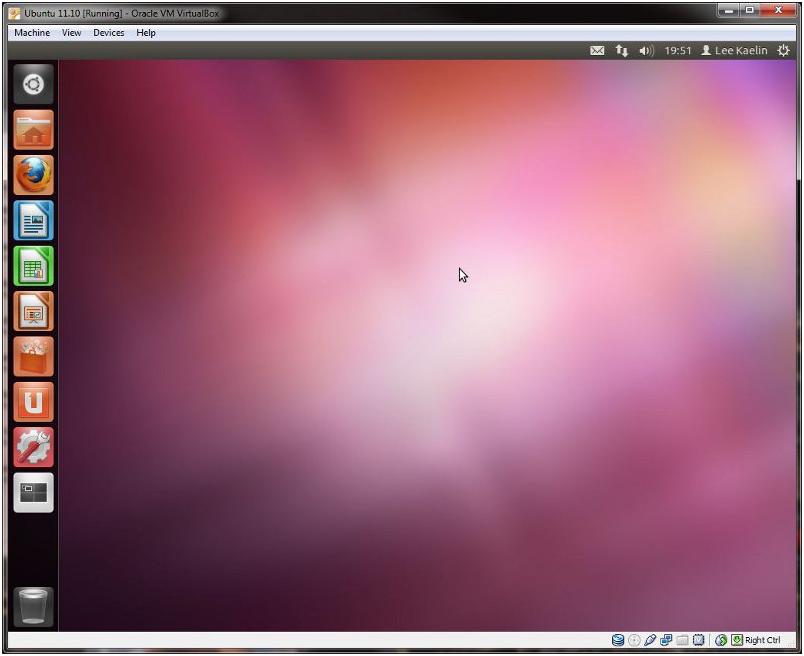
Step 15:
Your desktop should look like this


Step 16:
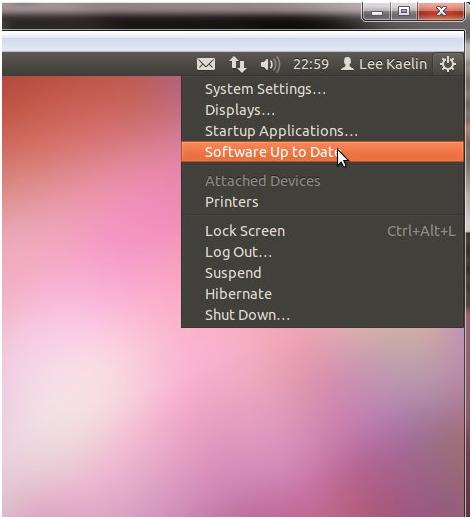
Before we proceed further, let's check for updates. Click on the power button on the top right corner of the screen and select "check for updates," or words to that effect.


I'd already run updates on this install so the example above is displaying "software up to date," but the picture highlights where you need to select anyway.

Upon selecting the update option, the update manager will appear, as below:


If it comes up with no available updates, just select "check" again to verify that it is correct. Having done the same thing myself, I was presented with the updates you see above. For those that opted to install updates during installation it is unlikely there will be further updates required.

You might be asked to enter your password to confirm changes. If prompted, enter your password and click OK. The same is true of any notifications that may appear during updating the OS.

Once complete select close, and restart Ubuntu.The power button is located on the top right corner of the screen. Click this and select shutdown.
Step 17:
No install is complete without full support for mp3s, core MS fonts, DVD playback codecs, Flash and Java, so let'sgo ahead and sort this now.

Click the black Ubuntu menu button at the top left corner of the screen and in the menu that appears, type "software centre" and select the Ubuntu Software Centre. Once open, click the search bar, type "restricted" and the following should appear:


Select Ubuntu restricted extras, and then click on the install button. 

Authentication is much like UAC (user access control) in windows Vista and 7. It is required to elevate your user privileges to that of root (Linux administrator). 

Ubuntu restricted extras will now download, sort any dependencies and install. You can check its progress by viewing the progress bar above the install button. Once finished the In Progress tab will disappear -- restart Linux.It's not strictly necessary, but I always do it after installing this package so everything can start up properly.

Now you can enjoy your new OS .


Tuesday, 11 December 2012

Linux Basic Commands


linux Basic Commands


File Handling

1:-mkdir – make directories
    Usage: mkdir [OPTION] DIRECTORY...
    eg. mkdir learn
2:-ls – list directory contents
    Usage: ls [OPTION]... [FILE]...
    eg. ls, ls l,
    ls learn
3:-cd – changes directories
    Usage: cd [DIRECTORY]
    eg. cd prabhat
4:-pwd-print
    name of current working directory
    Usage: pwd
5:-vim – Vi Improved, a programmers text editor
     Usage: vim [OPTION] [file]...
     eg. vim file1.txt
6;-cp – copy files and directories
    Usage: cp [OPTION]... SOURCE DEST
    eg. cp sample.txt sample_copy.txt
     cp sample_copy.txt target_dir
7:- mv – move (rename) files
     Usage: mv [OPTION]... SOURCE DEST
     eg. mv source.txt target_dir
     mv old.txt new.txt
8:-rm remove
    files or directories
    Usage: rm [OPTION]... FILE...
    eg. rm file1.txt , rm rf some_dir
9;- find – search for files in a directory hierarchy
     Usage: find [OPTION] [path] [pattern]
     eg. find file1.txt, find name file1.txt
10:- history – prints recently used commands
       Usage: history

Text Handling/Processing

1:-cat – concatenate files and print on the standard output
    Usage: cat [OPTION] [FILE]...
    eg. cat file1.txt file2.txt
    cat n file1.txt
2:-echo – display a line of text
    Usage: echo [OPTION] [string] ...
    eg. echo I love Pakistan
    echo $HOME
3:-grep print
    lines matching a pattern
    Usage: grep [OPTION] PATTERN [FILE]...
    eg. grep i
    apple sample.txt
4:-wc print
    the number of newlines, words, and bytes in files
    Usage: wc [OPTION]... [FILE]...
    eg. wc file1.txt
    wc L
    file1.txt
5:-sort – sort lines of text files
    Usage: sort [OPTION]... [FILE]...
    eg. sort file1.txt
    sort r
    file1.txt

System Administration

1:-su – change user ID or become superuser
    Usage: su [OPTION] [LOGIN]
    eg. su remo, su
2:-passwd – update a user’s authentication tokens(s)
    Usage: passwd [OPTION]
    eg. passwd
3:-who – show who is logged on
     Usage: who [OPTION]
     eg. who , who b, who q

File Systems

1:-fdisk – partition manipulator
    eg. sudo fdisk l
2:-mount – mount a file system
    Usage: mount t
    type device dir
    eg. mount /dev/sda5 /media/target
3;- umount – unmount file systems
     Usage: umount [OPTIONS] dir | device...
     eg. umount /media/target
4:-du – estimate file space usage
    Usage: du [OPTION]... [FILE]...
    eg. du
5:- df – report filesystem disk space usage
     Usage: df [OPTION]... [FILE]...
     eg. df
6:- quota – display disk usage and limits
     Usage: quota [OPTION]
     eg. quota v